
Booqable – How to add an Instagram widget to your website
Learn how to showcase Instagram images and videos on your Booqable website by embedding a responsive, visually appealing widget. This guide presumes you’ve already created a Booqable account.
Step 1 – Log in to your Booqable account
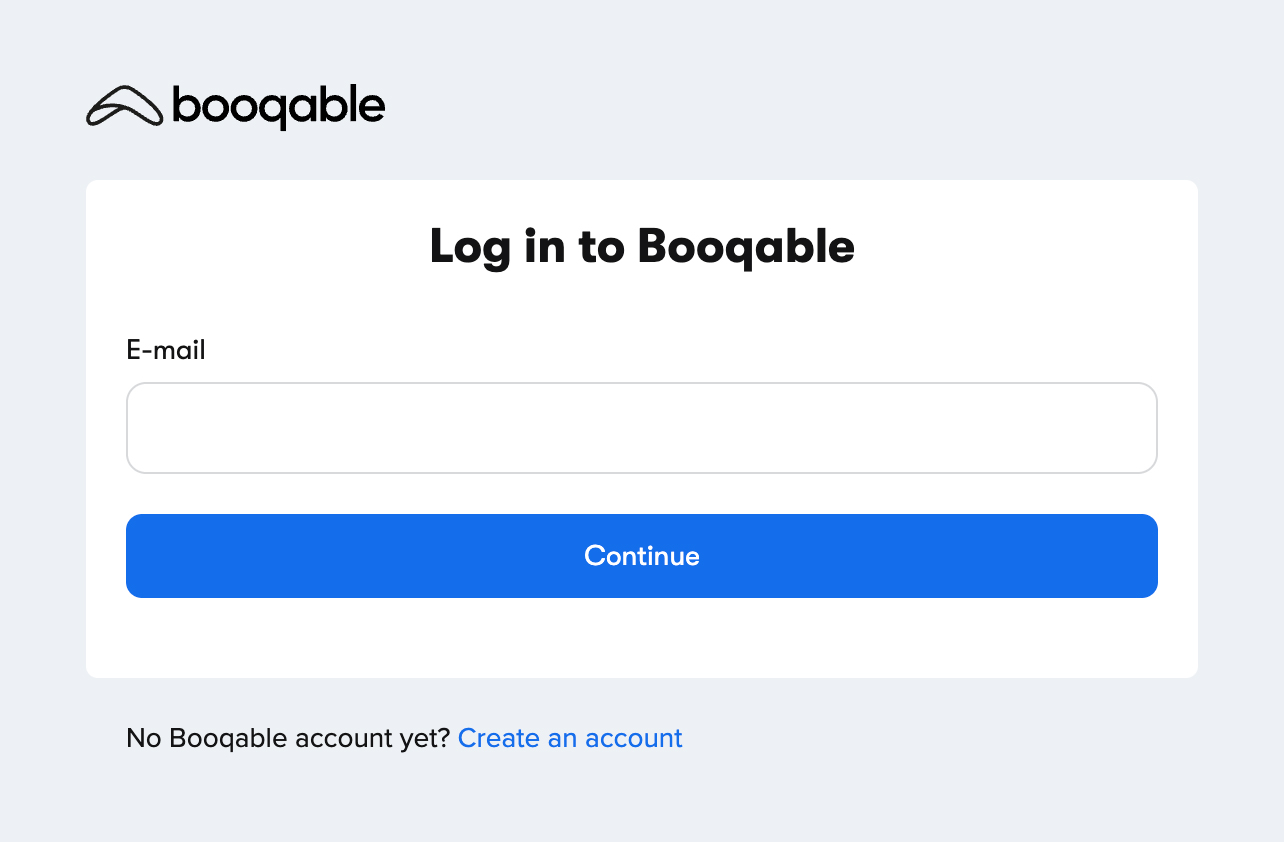
Log in at https://login.booqable.com/ to access your Booqable dashboard.
Step 2 – Install the Lightwidget app
1. Click on the App store tab in the navigation menu.
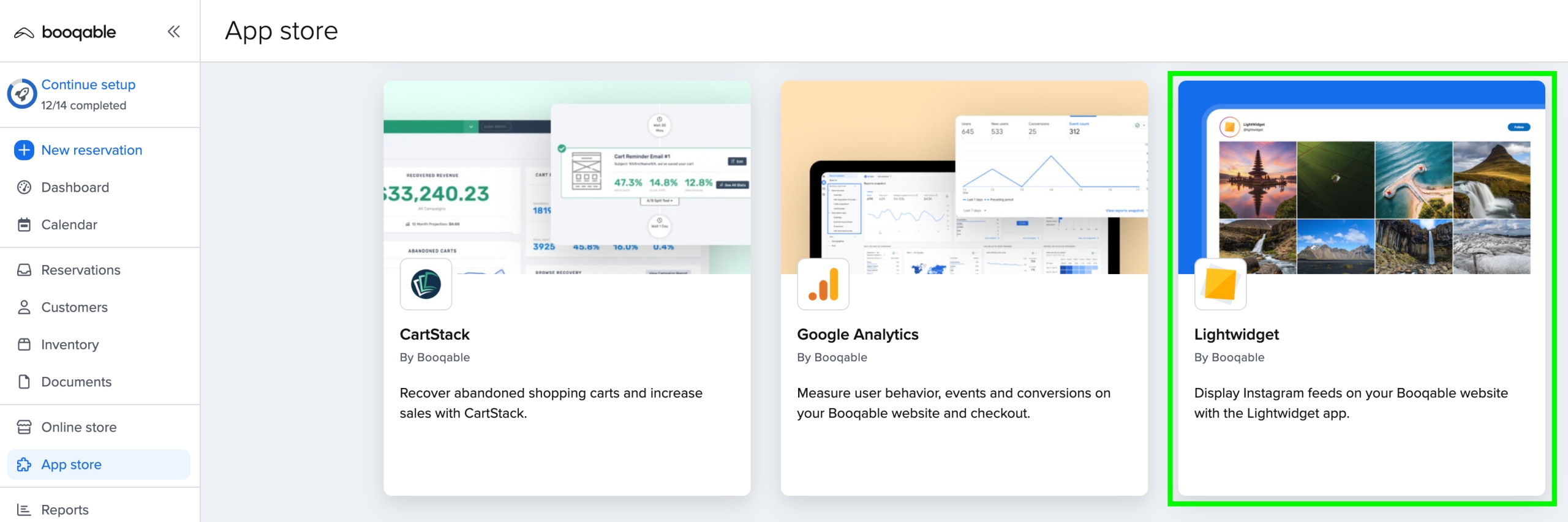
2. Select the LightWidget app and click on Install app.
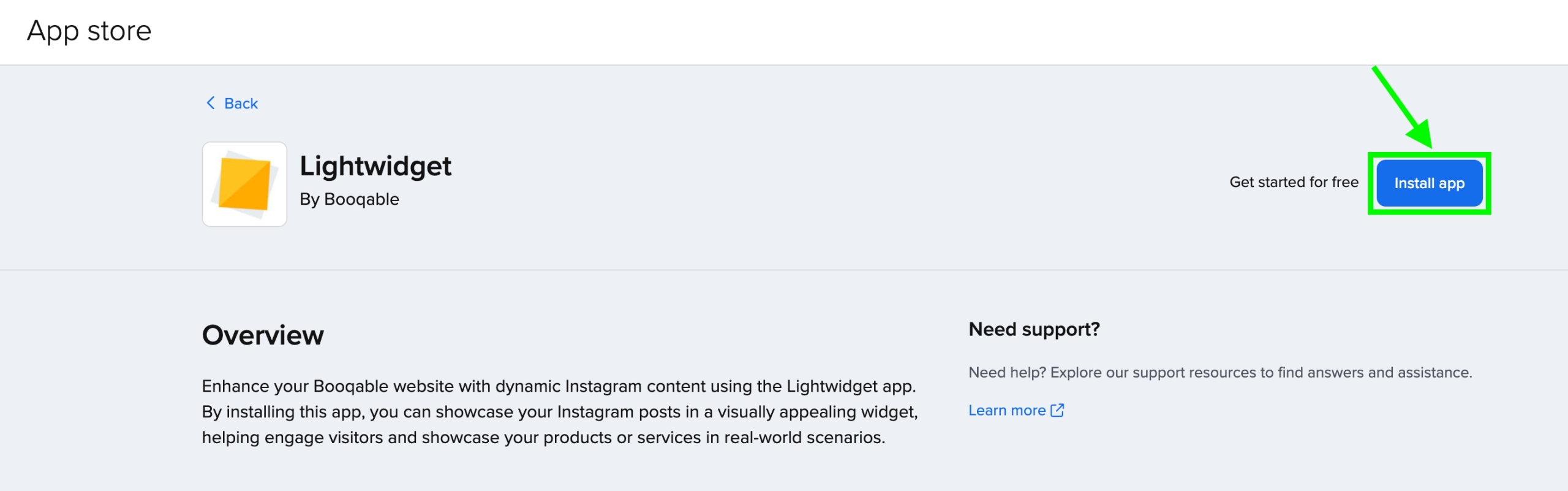
3. Follow the steps outlined in the app to create a LightWidget account, connect it to your business Instagram account, and create your own personalized widget to be embedded on your website.
Step 3 – Add the Lightwidget Section in your Website Builder
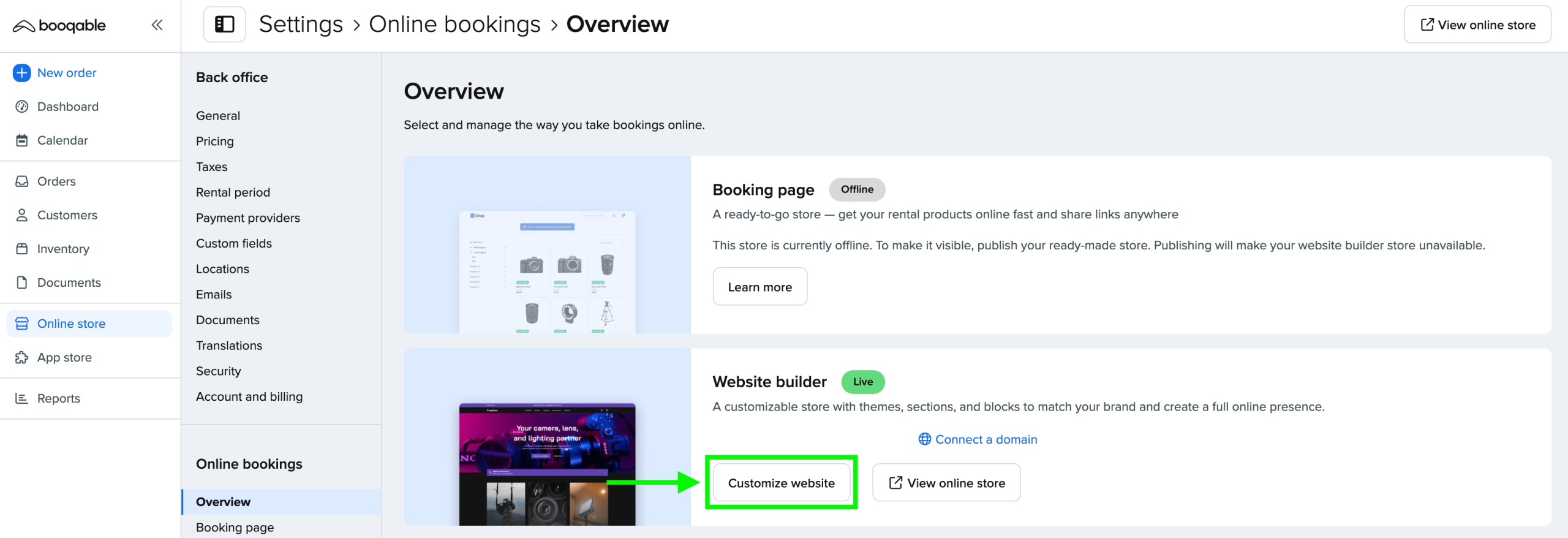
1. Navigate to your Online store.
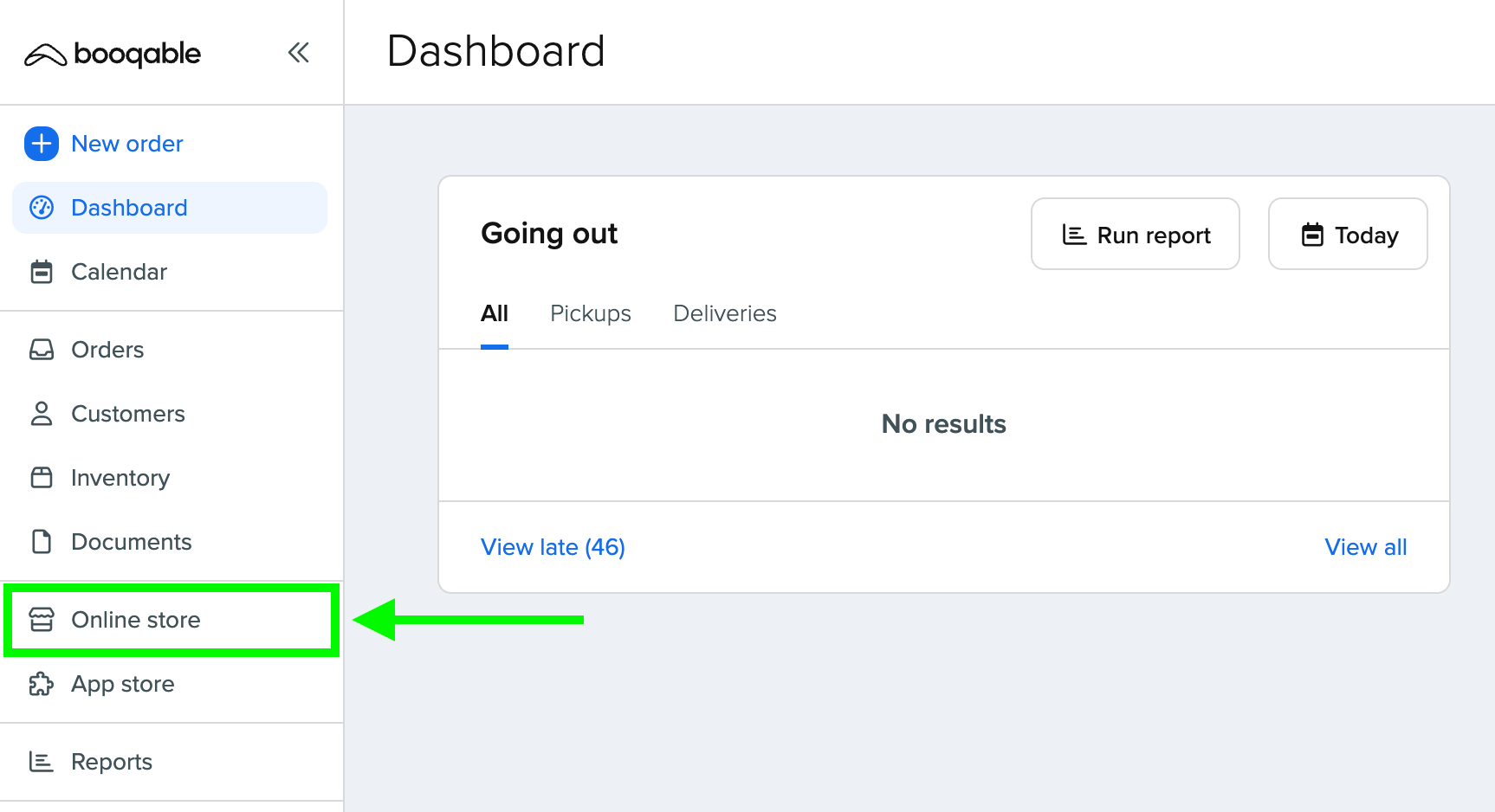
2. Click on the Customize website button under Website builder.
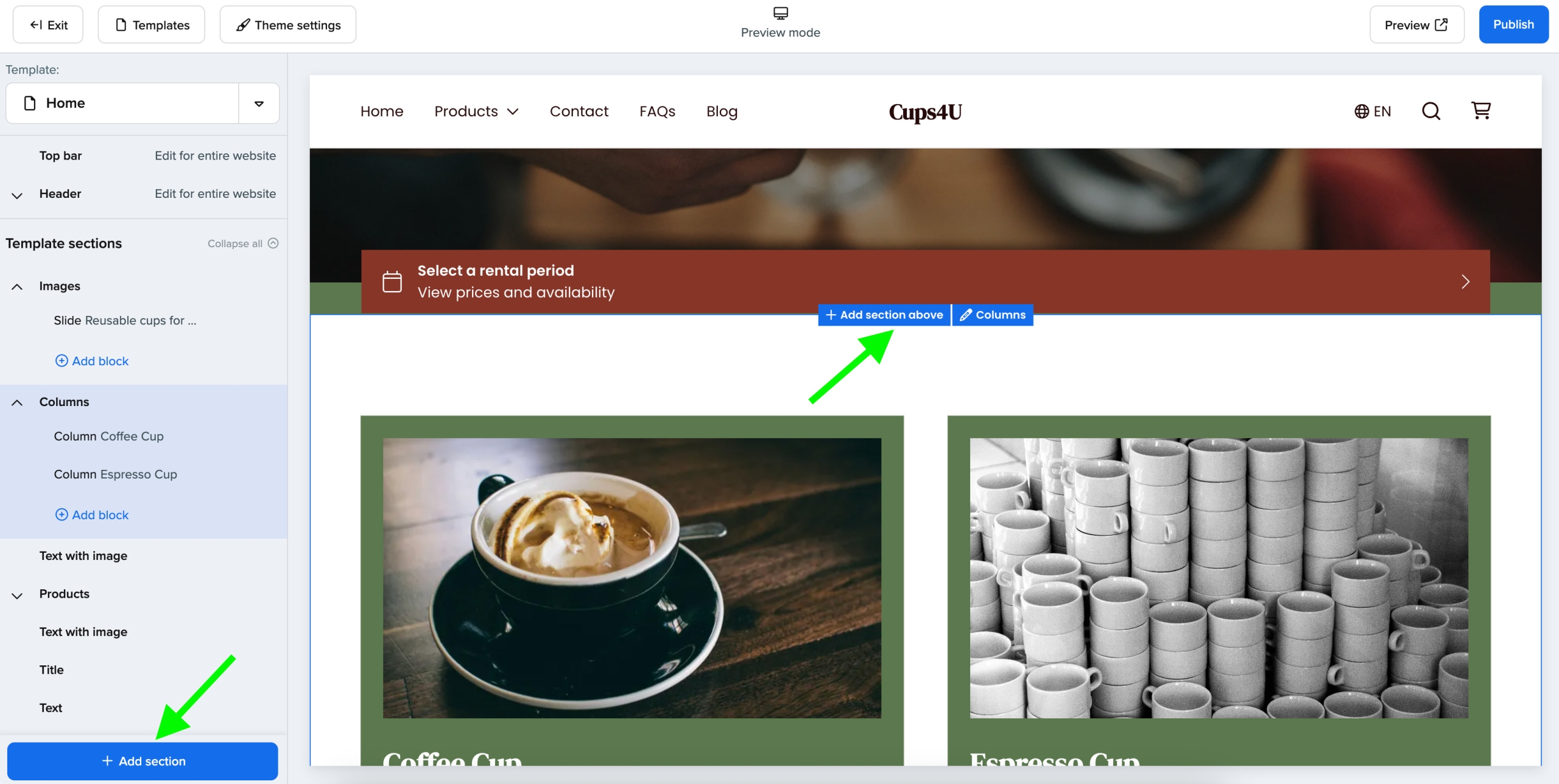
3. From your website builder, click on the Add section button.
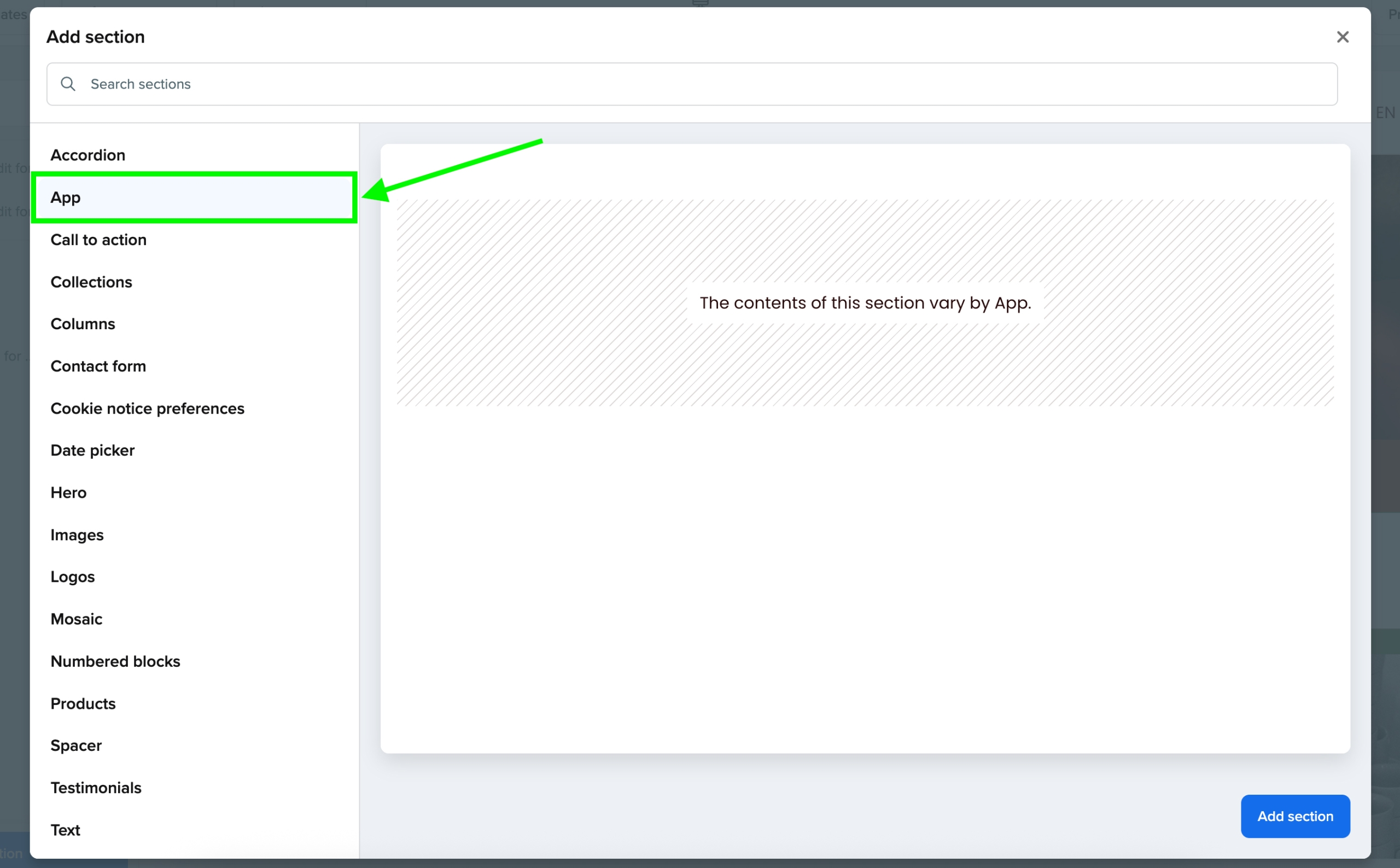
4. Select the App section and click the Add section button in the bottom right.
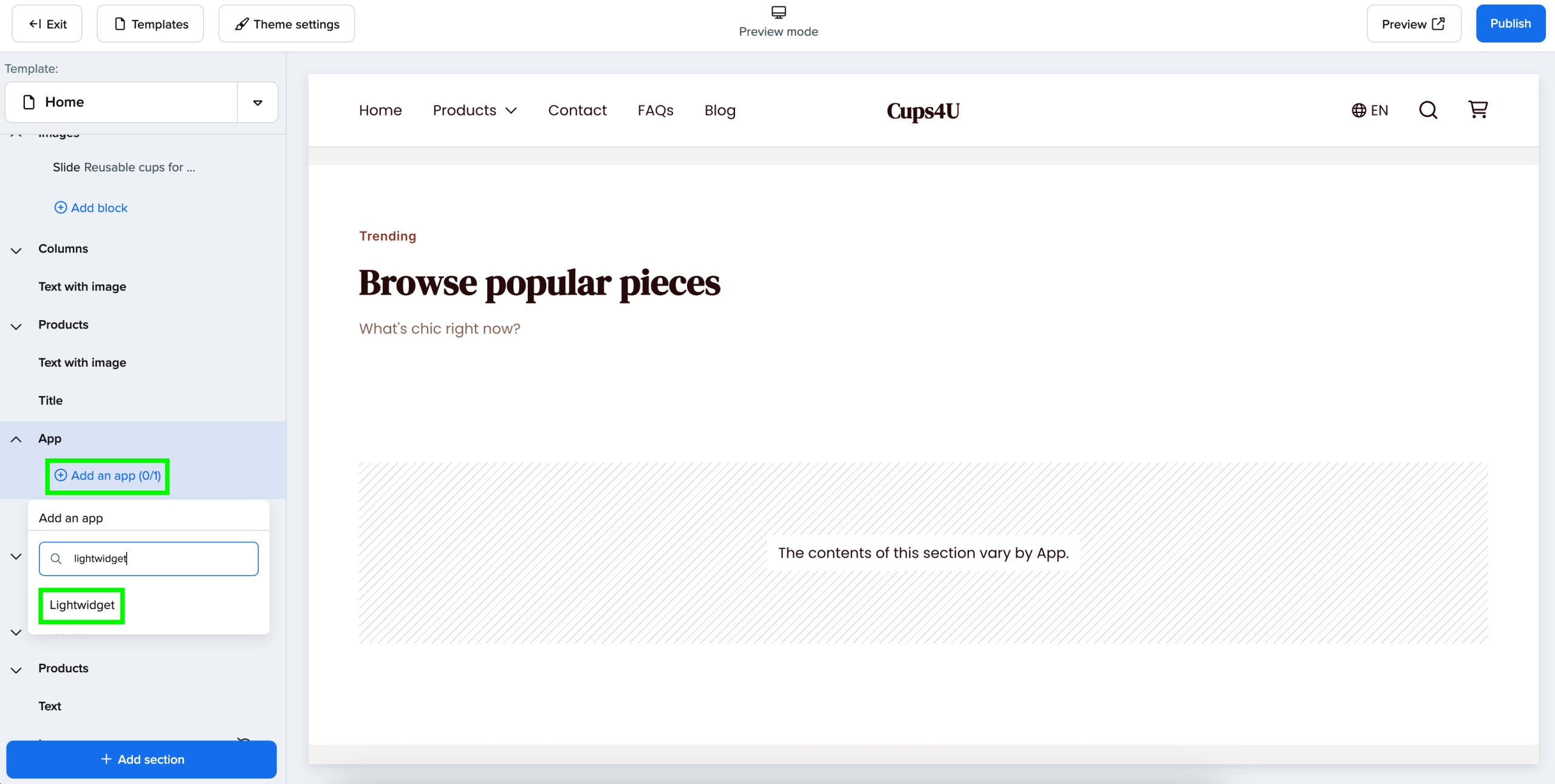
5. Click on Add an app under the section you’ve just added and select LightWidget.
6. Enter the Widget ID that can be found in your LightWidget account from the Widgets page.
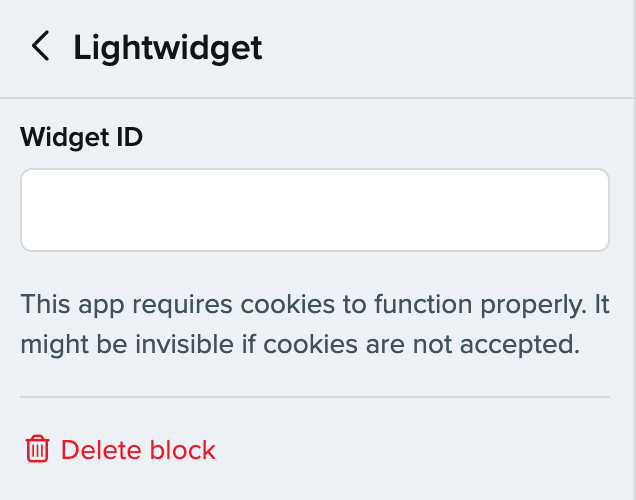
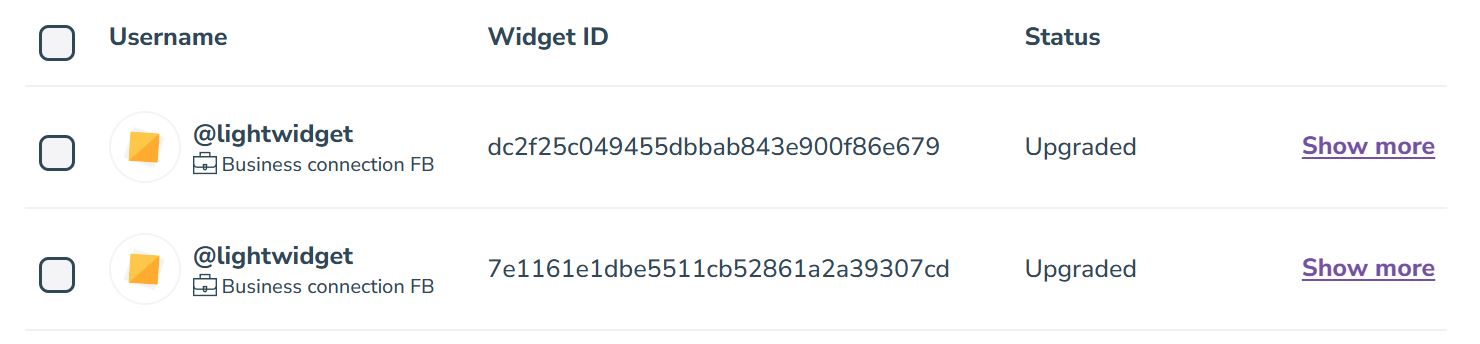
Manage LightWidget settings in Booqable
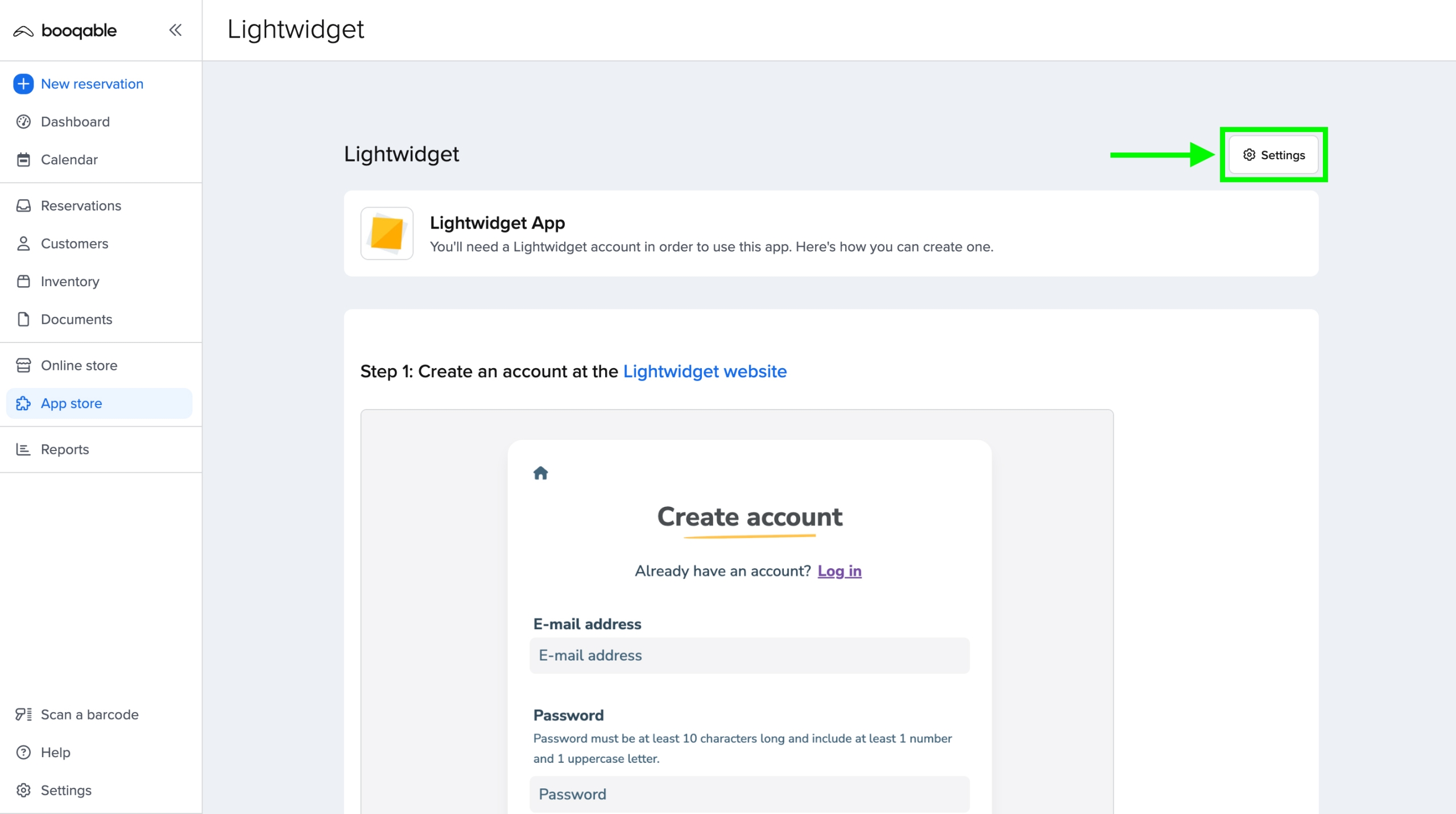
To adjust your application settings, navigate to the App Store dashboard, select your app, or access it directly from the App Store tab in your Booqable account.
Once you’ve entered your app’s configuration settings, click on the cogwheel icon in the upper-right corner. There, you can view your plan details or uninstall the app.
More information about Booqable
Booqable is an all-in-one rental software solution with the tools you need to manage a rental business. It is designed to help you with every step of the rental process, from order creation and inventory management and tracking to building a seamless online storefront, real-time availability, reporting, and more.
Booqable provides a suite of tools to streamline your rental process, simplify payments and documentation, and keep everything running smoothly.
Booqable can be adapted to many business needs, from small boutiques to large-scale operations, and is designed to be intuitive and user-friendly.
LightWidget can easily be installed onto a Booqable-built website, and this feature is included in all of Booqable plans.
Many thanks to Nathan from Booqable for providing us with the tutorial!


Comments (0)
You must be logged in to post comments.